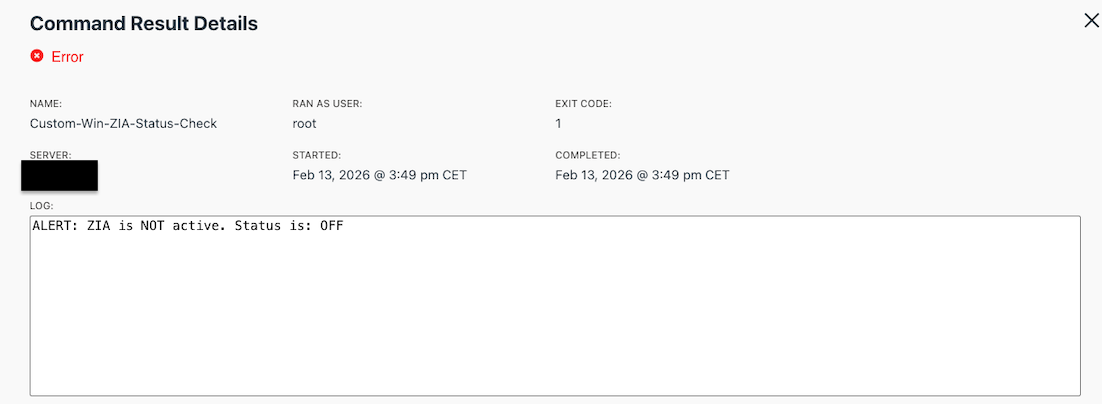
Diese Blogseite befasst sich mit der Überwachung des Zscaler Internet Access (ZIA)-Service auf dem Client-Gerät und der Erstellung eines Warnmechanismus, der die internen Sicherheitsteams informiert, wenn der ZIA-Service deaktiviert ist. Der Zweck hinter dieser Alarmierung ist es, die Sichtbarkeit des Endpunktgeräts zu gewährleisten und die Sicherheitslage in den Unternehmensumgebungen zu verbessern.
Schritt 1: Aktivieren des CLI-Zugriffs in Zscaler
Bevor das Skript funktioniert, müssen Sie den CLI-Zugriff in Ihren Zscaler-App-Profilen aktivieren:
-
Melden Sie sich beim Zscaler Client Connector Portal an.
-
Gehen Sie zu App-Profile > Windows (oder macOS).
-
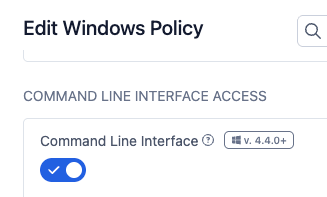
Bearbeiten Sie Ihre Richtlinie und suchen Sie den Abschnitt Command Line Interface Access.
-
Aktivieren Sie die Befehlszeilenschnittstelle und klicken Sie auf Speichern.
Schritt 2: Erstellen Sie das Prüfskript in JumpCloud
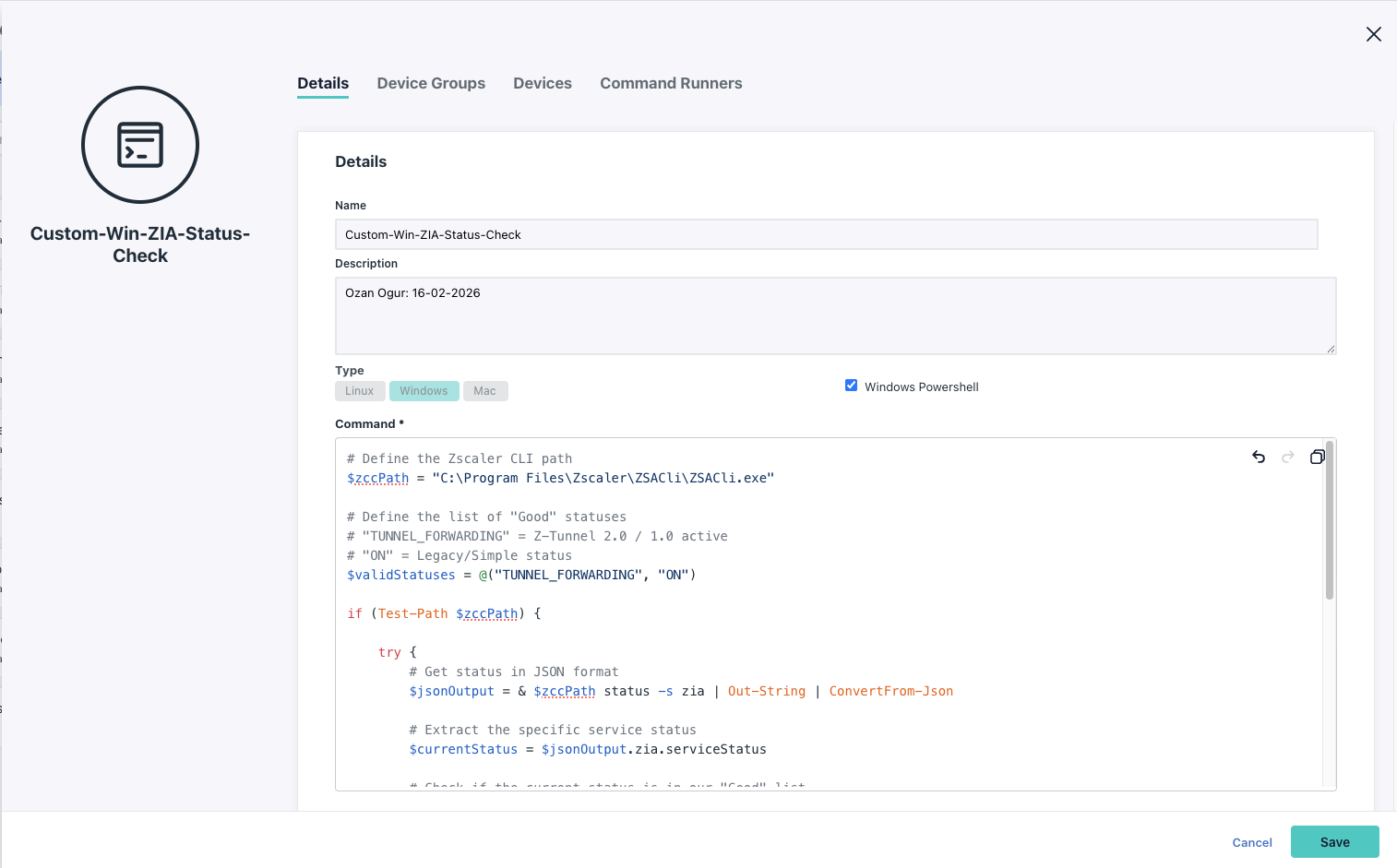
Erstellen Sie ein Skript, das den ZIA-Status prüft. Wenn der Status nicht "EIN" ist, wird das Skript mit Code 1 beendet, was JumpCloud als Alarmauslöser erkennt.
Für MacOS und Windows finden Sie unter folgendem Link die entsprechenden Befehlszeilenoptionen zur Entwicklung des Skripts
Auch ein Beispielskript für die Windows-Umgebung finden Sie hier.
Schritt 3: Konfigurieren Sie die JumpCloud-Überwachungsregel
a.) Erstellen Sie den Befehl:
-
Gehen Sie zu Geräteverwaltung > Befehle.
-
Klicken Sie auf (+) und wählen Sie Befehl.
-
Fügen Sie das von Ihnen erstellte Skript oder das oben angehängte Beispielskript ein.
-
Setzen Sie Typ auf PowerShell (Windows) oder Bash (Mac).
-
Wählen Sie unter Launch Events die Option Run as Repeating.
-
Stellen Sie ein, dass es alle 10 Minuten wiederholt wird.
-
Binden Sie es an die entsprechenden Gerätegruppen.
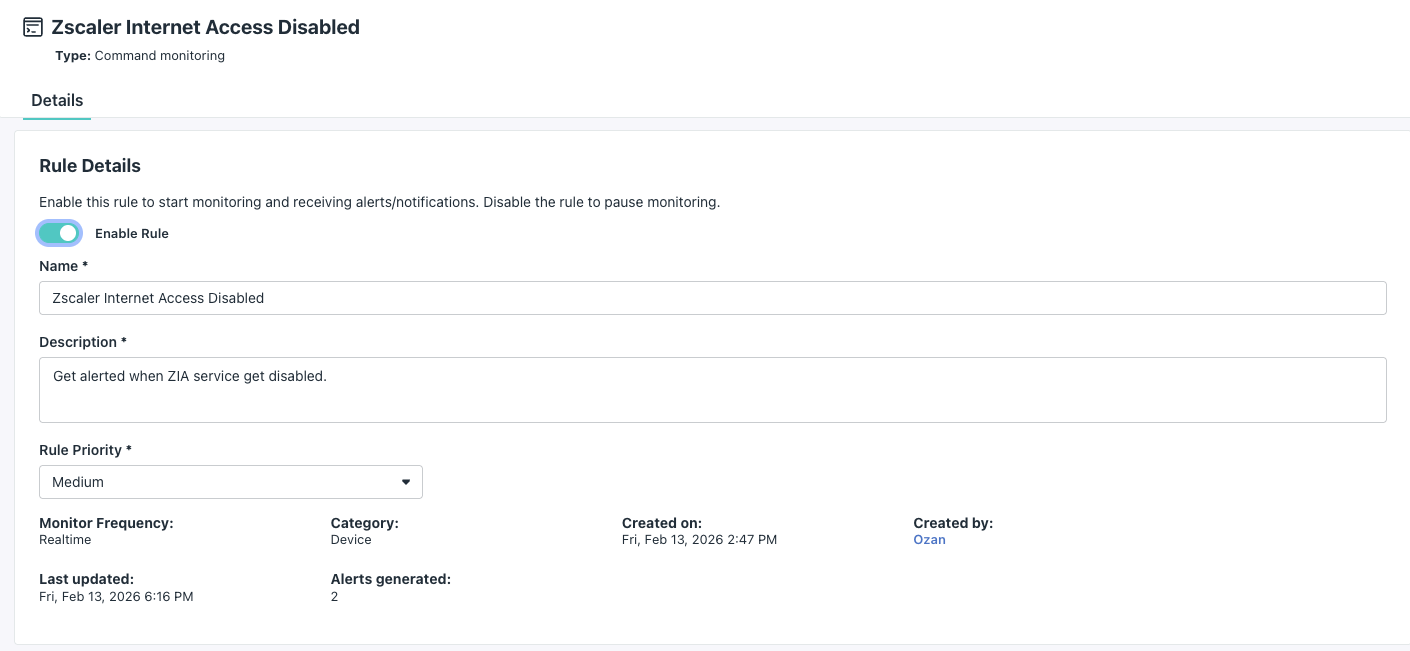
b.) Erstellen Sie die Alert Rule:
-
Gehen Sie zu Insights > Alerts (oder Alerts in der linken Navigationsleiste).
-
Klicken Sie auf die Registerkarte Regeln und dann auf + Regel.
-
Wählen Sie die Vorlage Command Execution Failure.
-
Bedingung: Wählen Sie den Befehl, den Sie im vorherigen Schritt erstellt haben.
-
Priorität: Setzen Sie sie auf Hoch oder Mittel.
-
Aktionen: - Schalten Sie Benachrichtigungen senden um.
-
Konfigurieren Sie Ihren Benachrichtigungskanal (E-Mail, Slack oder Webhook). Stellen Sie sicher, dass Ihre E-Mail dem Benachrichtigungskanal unter Einstellungen > Benachrichtigungskanäle hinzugefügt wurde.
-
So funktioniert es:
Alle 10 Minuten führt JumpCloud das Skript aus.
Wenn ZIA "AUS" oder "DEAKTIVIERT" ist, wird das Skript mit 1 beendet.
JumpCloud sieht die 1, markiert die Befehlsausführung als "Fehlschlag" und löst sofort die Warnregel aus, um Ihnen eine E-Mail zu senden.